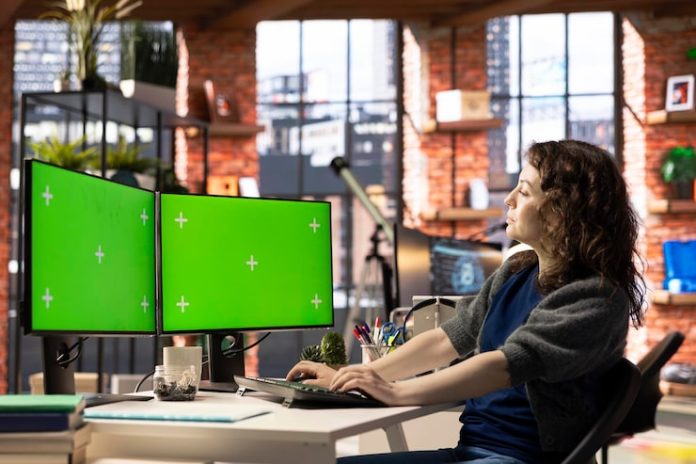

The Productivity Upgrade With the Most Immediate Impact
Research on dual-monitor productivity has consistently found meaningful improvements in knowledge worker output: a 2008 University of Utah study found a 9% productivity improvement from adding a second monitor to a single-monitor setup; subsequent studies at specific task types have found larger improvements for specific workflows. The effect is most pronounced for work involving reference material alongside active work — writing while researching, coding while referencing documentation, analysis while viewing source data. This isn’t a subtle marginal improvement — most people who add a second monitor describe it as one of the most impactful computer upgrades they’ve made.
The reason the productivity improvement is real rather than marginal: the ‘second screen’ is almost never idle. The screen that holds the reference document, the communication tool, the dashboard that’s being worked from, the task list — these are windows that exist in every knowledge worker’s workflow and that a single monitor forces you to constantly minimize, switch to, and maximize. The cognitive cost of this context switching accumulates invisibly.
Monitor Selection: What Actually Matters
Resolution determines how much you can see on the screen: 1080p (1920×1080) is the minimum for a comfortable secondary screen; 1440p (2560×1440) is the sweet spot for most use cases where text sharpness matters; 4K (3840×2160) on a 27-inch monitor produces pixel density approaching laptop retina displays and is particularly valuable for design and media work. For a secondary productivity monitor where the primary use is displaying reference windows, documents, and communication tools, 1440p at 27 inches is the specification that most users find completely satisfying.
Panel type matters for specific use cases: IPS panels provide accurate colors and wide viewing angles, making them the standard for design, photography, and any color-sensitive work. VA panels provide deeper blacks and better contrast for media consumption but have narrower viewing angles. TN panels are the fastest (lowest response time and highest refresh rate for the same price) but have inferior color and viewing angles — they’re primarily for competitive gaming. For productivity, IPS is the default recommendation.
Stand and Ergonomic Setup
A monitor that’s the wrong height, angle, or distance creates neck and eye strain that accumulates over a full work day. The correct ergonomic position: the top of the monitor screen at or slightly below eye level, approximately arm’s length (60–80 cm) from the face, tilted slightly backward so the screen is perpendicular to your line of sight when looking at the screen center. Standard monitor stands rarely achieve this position correctly for the range of human heights and desk heights they accommodate.
A monitor arm (VESA mount arm) mounts to the desk and provides full adjustability of height, tilt, and extension for $30–$150. For multi-monitor setups, dual-arm mounts hold both screens on a single desk clamp and allow precise positioning of both screens relative to each other and relative to the user. The clean desk aesthetic of a monitor arm (no stand footprint freeing up significant desk surface) is a bonus to the ergonomic positioning benefit.
Cable Management and Connection
A multi-monitor setup with unmanaged cables is a constant reminder of its own complexity. Cable management requires less equipment than most people expect: hook-and-loop velcro cable ties ($10 for a pack) to bundle cables at the desk, cable raceways to route bundles along the desk edge, and cable clips that route individual cables through defined paths. The 30-minute investment in cable management after setup makes the workspace look deliberately designed rather than assembled.
Connection types to be aware of: DisplayPort is the preferred connection for high-refresh-rate and high-resolution monitors — it handles 4K at 144Hz on a single cable and is the standard for serious PC setups. HDMI 2.1 handles equivalent bandwidth but is more commonly found on TVs and consumer monitors than on desktop monitors. USB-C with DisplayPort Alt Mode allows a single USB-C cable to carry both video and power for compatible monitors — useful for laptop setups that benefit from single-cable dock simplicity. Ensure your graphics card or laptop has the correct output ports for the monitors you’re connecting before purchasing.
Software Setup for Multi-Monitor Productivity
Windows’ built-in multi-monitor management (Display Settings > Arrange Displays) handles most setup correctly if you tell it the physical arrangement of your monitors. Defining which monitor is primary (where the taskbar and application launches appear), the relative position and alignment of monitors (does the top of the left monitor line up with the top of the right monitor or with its center?), and the individual scale settings for each monitor (which may differ if monitors are different sizes or resolutions) takes five minutes and makes the setup feel intentional.
DisplayFusion (paid, has free version with limited features) and virtual desktop management tools extend Windows’ built-in multi-monitor support: per-monitor taskbars that show only the apps running on that monitor, custom wallpaper per monitor, window management rules that always open specific apps on specific monitors, and hotkeys for moving windows between monitors. For power users whose workflows consistently use specific apps on specific screens, these tools eliminate the manual window arrangement that otherwise starts each work session.